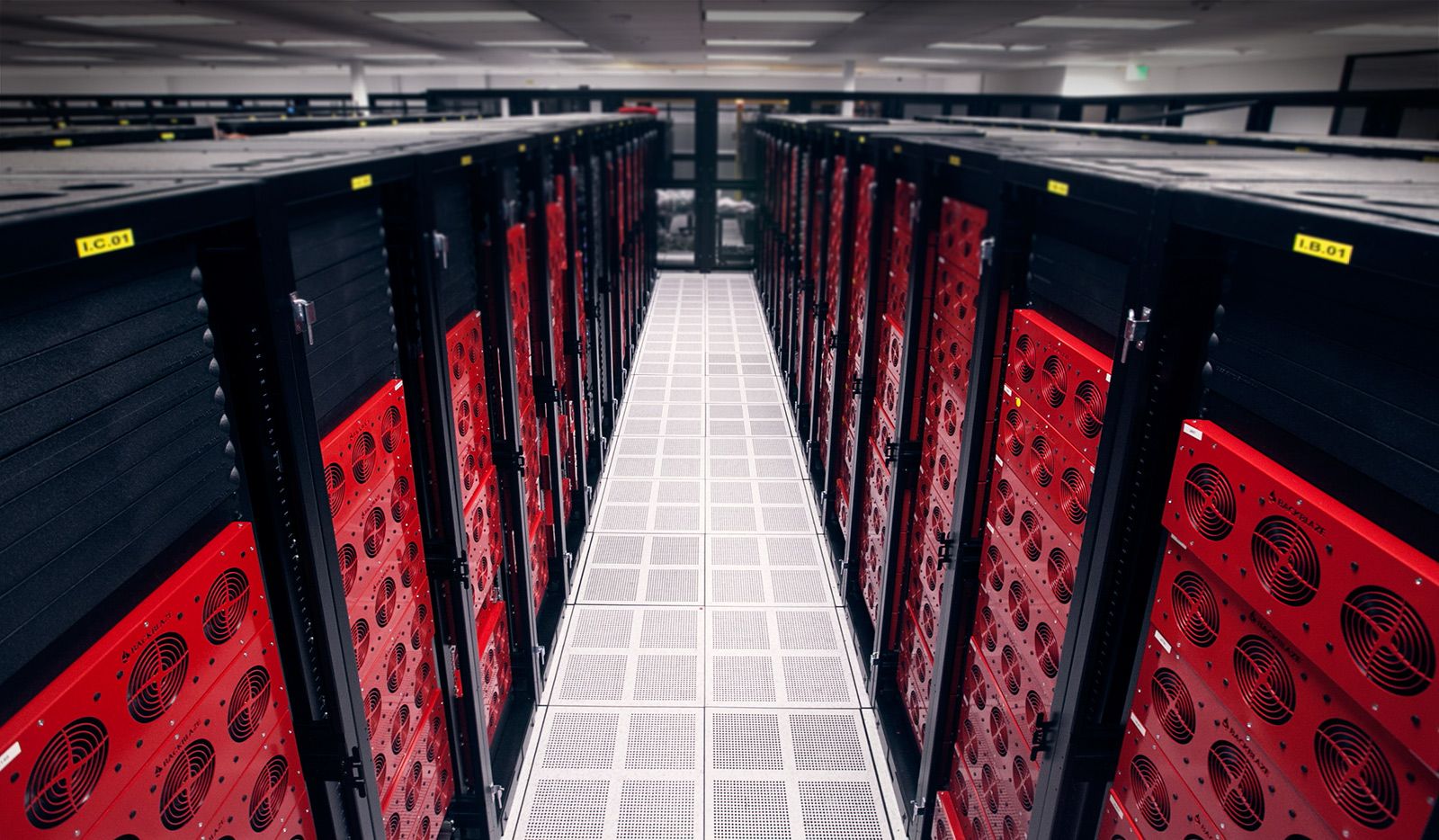
For a long time I didn't follow the 3-2-1 backup rule. It really bothered me. A lot. Instead I followed the 2-2 rule if that's a thing. The 3-2-1 backup strategy means having three copies of your data on two different local storage mediums and one backup offsite. I was dying a little on the inside knowing I only had two copies of important data in two places in the house.
Speaking of dying on the inside, you know what really makes me cringe? When people tell me they just got an external hard drive to move all their data off of a laptop because it didn't have any disk space left. I pray that these people will get the help they need.
My wife and I have important data on our desktops and laptops that needs to be backed up in case whatever drives are in them die. These files are backed up to our NAS. In my case I have box in my server rack that runs Unraid but plenty of NAS options are available. My wife chooses to go the manual route and copies important files over to her share herself. My desktop runs a little file sync utility called Syncthing that keeps my files in sync with my backup share. Unraid can also run Time Machine for backing up Macs.
For backing up data offsite, I've chosen to use Duplicati which runs in a Docker container on Unraid, but the setup will be the same no matter what platform it runs on. Duplicati is free and open source and was designed with online backups in mind. It will compress and encrypt the files before they are transferred. It can back up to pretty much any destination including many cloud backup providers. I chose to use Backblaze's B2 storage as my destination because it is dirt cheap (seriously check out their pricing here). I'm storing about 80GB which costs me around $5 a year.
The first thing you'll need to do is create an account with Backblaze and sign up for B2 cloud storage. You won't need to use any of their other products for this. On your main account page you'll see an option to create a bucket. Bucket is just a fancy term for folder or directory or in this case a backup destination.
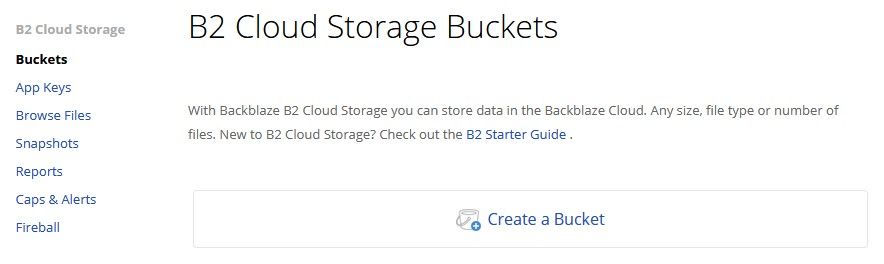
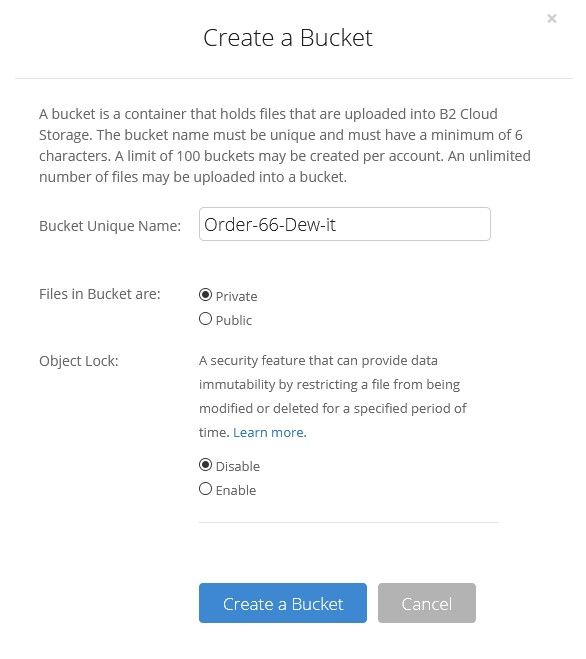
Create a new bucket and name it. Be aware that bucket names must be unique. You can't have a bucket name that anyone else has already used.
Once the bucket is created, make a folder inside of it to be used for your backup destination using the Browse Files menu option on the main page of your account. At this point, you'll need to create application keys. Backblaze will have you create a master application key which you could use for your backups, but it's better to create separate application keys for whatever application or operation you want to use the bucket for. Click on App Keys in the left hand menu of your main account page, create a master application key, and then create a new key to be used with Duplicati.
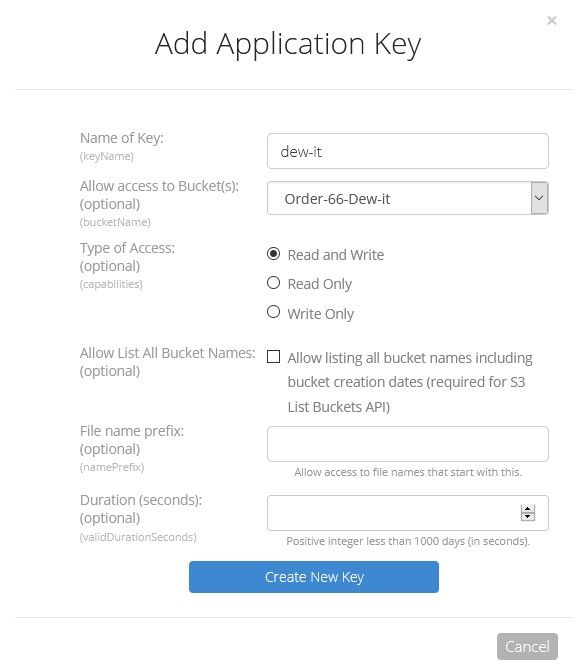
Backblaze will only show you the application key once so make sure to save it in a password manager like LastPass. If you lose it you can't get it back and you'll have to create a new one.
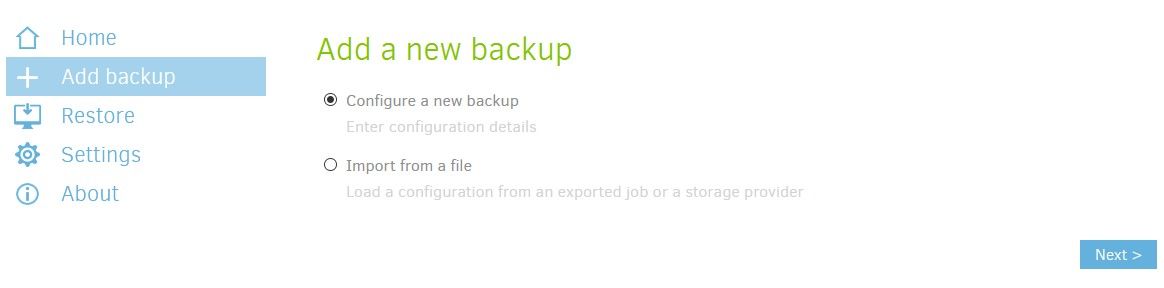
Next, install Duplicati on your platform of choice and open it. It is managed through a web UI which is quite convenient. The real crash course for Duplicati is here but I'll give a quick run down. Click on Add Backup, configure a new backup, then click next.
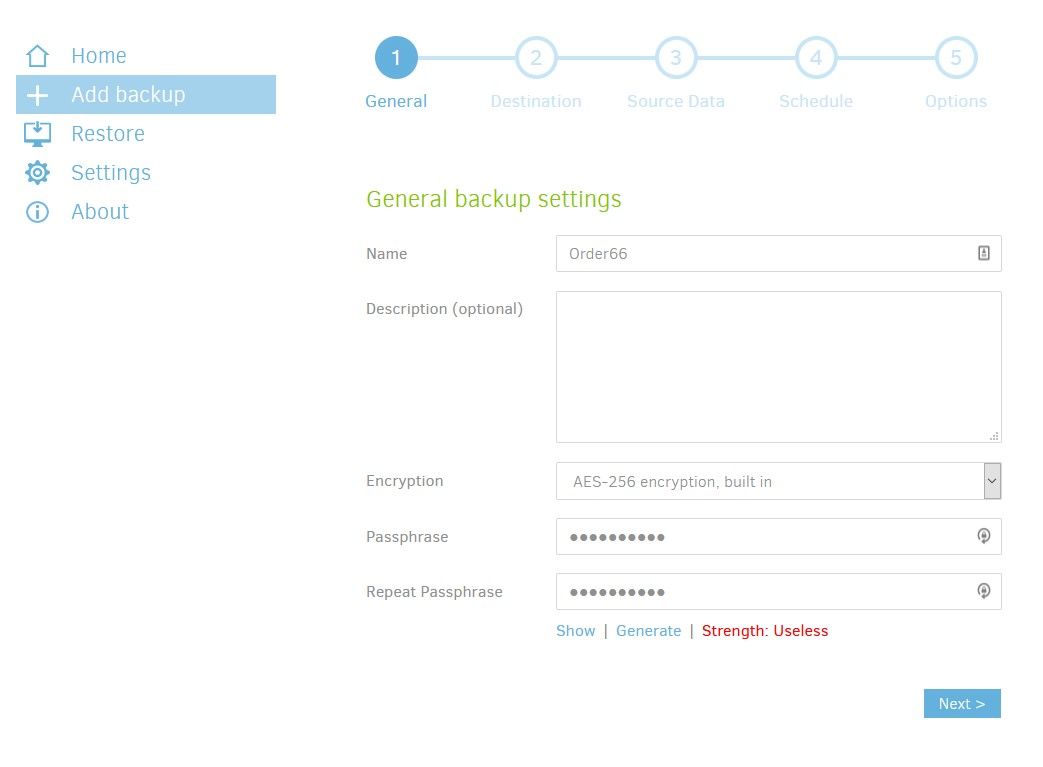
Name the backup, select the encryption type, and create a password for the encryption. Duplicati will make sure to tell you if you've chosen a less than worthy password.
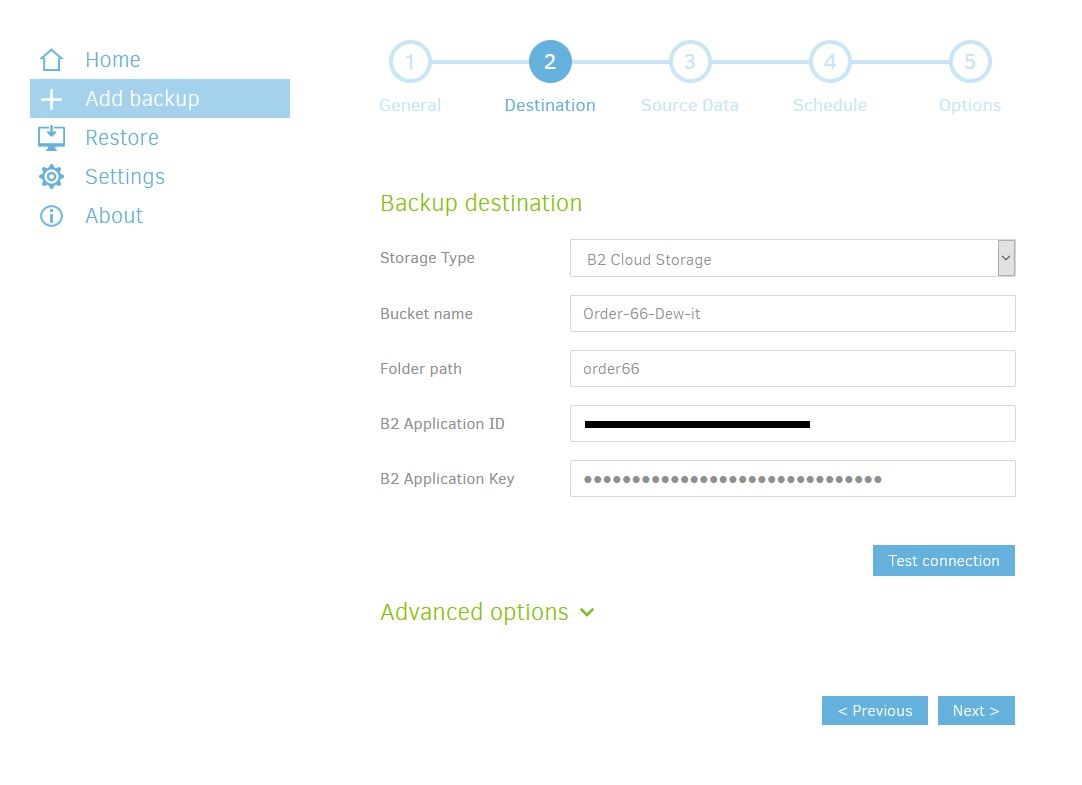
The destination will be B2 Cloud Storage. Enter the bucket name, the folder you created in the bucket, and the application ID and key. Click the Test Connection button to make sure Duplicati can talk to the Backblaze bucket. Success will result in a window that says the connection worked.
The next couple of menus are self explantory. Just select what folders you'd like to back up and what type of schedule you'd like to run.
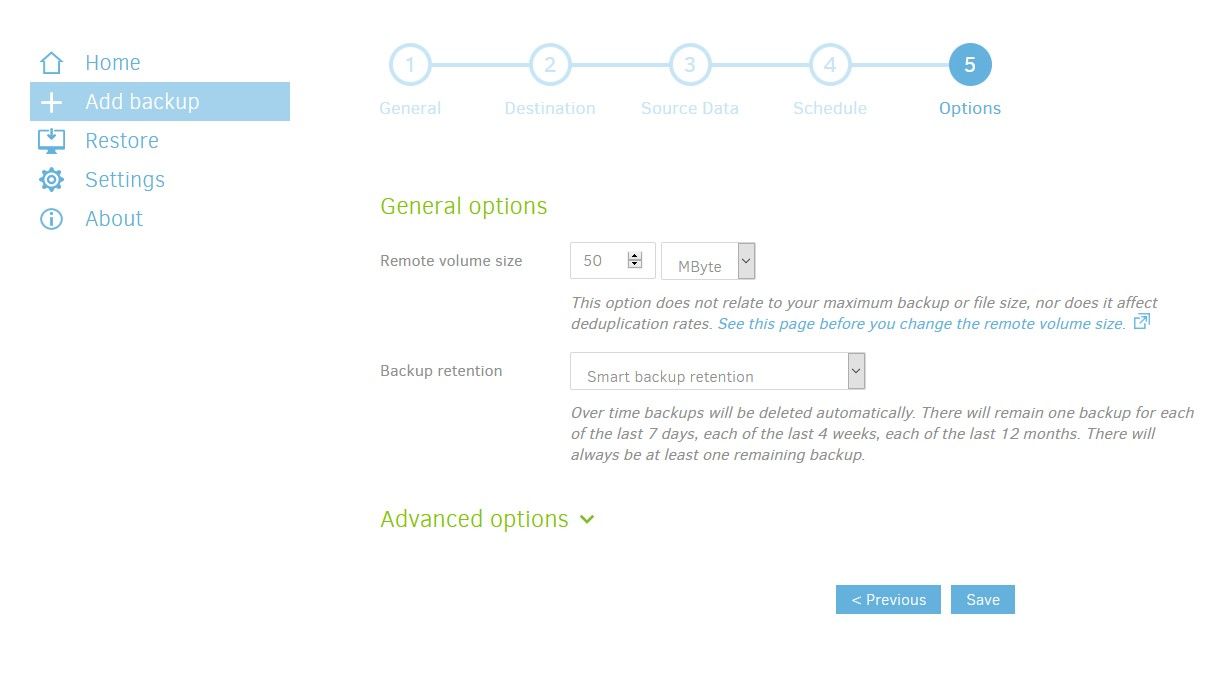
The Options menu is where you choose what type of backup retention you'd like to use. Typically, I'll use the smart backup retention but other options might be better suited to whatever types of files you're backup up. You can keep all backups, delete backups older than a certain period of time, or keep a certain number of backups. This forum post explains what each option does.
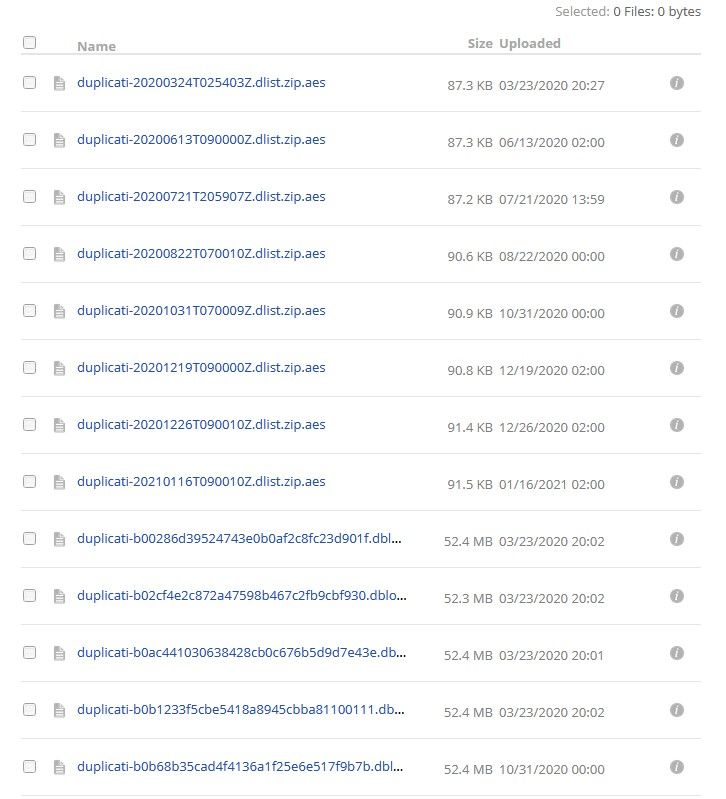
That's it! Once some files are backed up to Backblaze, you'll be able to see them in your bucket. Remember that Duplicati encrypts everything so all you're going to see is a bunch of encypted files. This is the point. Your files will be stored in the cloud and will be encrypted.
To actually see the files that have been backed up, click the Restore menu option in Duplicati and select the backup job for the files you want to see then click Next. The really neat thing is that you can install Duplicati on whatever device you want and log in to your bucket using its application ID and key to view your files.
Remember that the whole idea with this is to upload your important files to the cloud so that they can just sit there in a place where you'll hopefully never need them. But if you do, you'll be able to get them.